Whether you are issuing an invoice in Hong Kong, writing a bank check in Taiwan, or preparing a formal contract, using Traditional Chinese financial characters (大寫數字) is essential. Unlike standard digits, these complex characters (such as 壹, 貳, 叁) are nearly impossible to alter, providing a critical layer of security for your financial transactions.
While Microsoft Excel is a powerful tool, it does not have a native function to “spell out” these characters automatically. The most reliable solution is to use a VBA (Visual Basic for Applications) macro to create a custom function.
Why Use the VBA Method for Chinese Characters?
Standard formulas for Chinese conversion can become incredibly messy, especially when dealing with units like 萬 (Ten Thousand) and 億 (Hundred Million). A VBA script is superior because:
- Anti-Fraud: It uses the formal “Big Writing” (大寫) characters required by banks.
- Accuracy: It correctly handles the “Zero” (零) placement rules in Chinese numbering.
- Efficiency: Once set up, you can convert thousands of rows instantly with a simple formula.
Step-by-Step Guide: Adding the Function
Follow these steps to enable automatic Chinese number conversion in your workbook.
- Open the VBA Editor
Open your Excel workbook and press Alt + F11 to launch the Visual Basic editor. - Insert a New Module
In the top menu, go to Insert > Module. A new code window will appear. -
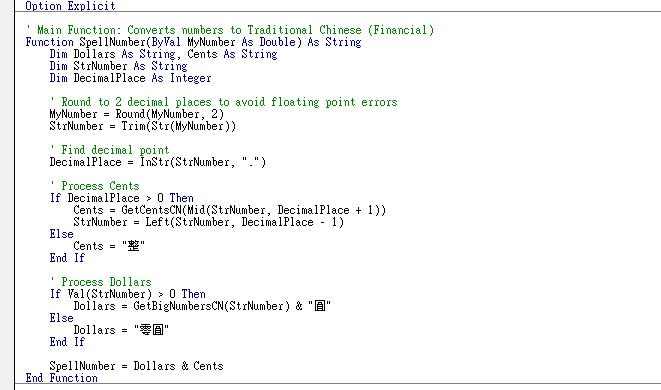
Add the Script
Copy and paste your Traditional Chinese VBA code into this window.Option Explicit' Main Function: Converts numbers to Traditional Chinese (Financial)
Function SpellNumber(ByVal MyNumber As Double) As String
Dim Dollars As String, Cents As String
Dim StrNumber As String
Dim DecimalPlace As Integer' Round to 2 decimal places to avoid floating point errors
MyNumber = Round(MyNumber, 2)
StrNumber = Trim(Str(MyNumber))' Find decimal point
DecimalPlace = InStr(StrNumber, ".")' Process Cents
If DecimalPlace > 0 Then
Cents = GetCentsCN(Mid(StrNumber, DecimalPlace + 1))
StrNumber = Left(StrNumber, DecimalPlace - 1)
Else
Cents = "整"
End If' Process Dollars
If Val(StrNumber) > 0 Then
Dollars = GetBigNumbersCN(StrNumber) & "圓"
Else
Dollars = "零圓"
End IfSpellNumber = Dollars & Cents
End Function' Handles the "Ten-Thousand" (萬) grouping logic
Private Function GetBigNumbersCN(ByVal MyNumber As String) As String
Dim Result As String
Dim Section As String
Dim Units As Variant
Dim i As Integer, Length As Integer' Chinese units go by 4 digits (萬, 億, 兆)
Units = Array("", "萬", "億", "兆")Result = ""
i = 0Do While Len(MyNumber) > 0
Section = Right(MyNumber, 4)
If Val(Section) <> 0 Then
Result = GetFourDigitsCN(Section) & Units(i) & Result
End IfIf Len(MyNumber) > 4 Then
MyNumber = Left(MyNumber, Len(MyNumber) - 4)
Else
MyNumber = ""
End If
i = i + 1
LoopGetBigNumbersCN = Result
End Function' Converts groups of 4 digits (e.g., 1234)
Private Function GetFourDigitsCN(ByVal DigitStr As String) As String
Dim i As Integer, Digit As Integer
Dim Result As String
Dim UnitArr As Variant
Dim DigitArr As VariantUnitArr = Array("", "拾", "佰", "仟")
DigitArr = Array("零", "壹", "貳", "叁", "肆", "伍", "陸", "柒", "捌", "玖")DigitStr = Right("0000" & DigitStr, 4)
Result = ""For i = 1 To 4
Digit = Val(Mid(DigitStr, i, 1))
If Digit <> 0 Then
Result = Result & DigitArr(Digit) & UnitArr(4 - i)
Else
' Handle zeros to avoid double "零" and trailing "零"
If Result <> "" And i < 4 Then If Val(Mid(DigitStr, i + 1)) <> 0 Then
If Right(Result, 1) <> "零" Then Result = Result & "零"
End If
End If
End If
Next iGetFourDigitsCN = Result
End Function' Handles Cents (角 and 分)
Private Function GetCentsCN(ByVal CentsStr As String) As String
Dim Jiao As Integer, Fen As Integer
Dim DigitArr As Variant
DigitArr = Array("零", "壹", "貳", "叁", "肆", "伍", "陸", "柒", "捌", "玖")CentsStr = Left(CentsStr & "00", 2)
Jiao = Val(Left(CentsStr, 1))
Fen = Val(Right(CentsStr, 1))Dim Result As String
If Jiao > 0 Then Result = Result & DigitArr(Jiao) & "角"
If Fen > 0 Then Result = Result & DigitArr(Fen) & "分"GetCentsCN = Result
End Function -
Save as a Macro-Enabled Workbook
Crucial: Go to File > Save As and select Excel Macro-Enabled Workbook (*.xlsm). If you save as a standard.xlsx, your new Chinese conversion function will be lost. - Use the Function
Return to your spreadsheet. In any cell, simply type:
=SpellNumber(A1)
Comparison: Standard vs. Financial Chinese Characters
Your VBA script ensures you are using the “Legal/Financial” column, which is required for checks and formal receipts.
| Number | Standard (小寫) | Financial (大寫 – Secure) |
|---|---|---|
| 1 | 一 | 壹 |
| 2 | 二 | 貳 |
| 3 | 三 | 叁 |
| 10 | 十 | 拾 |