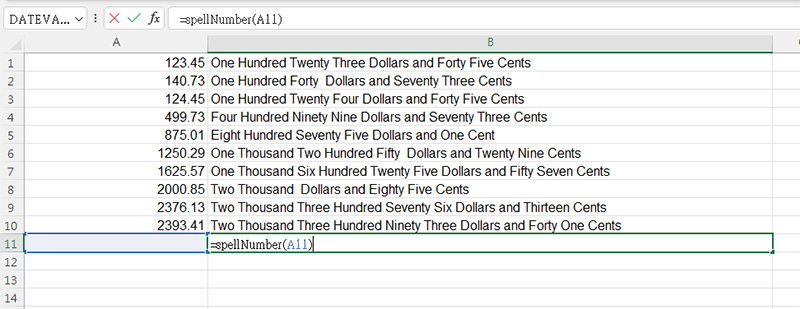
Whether you are preparing professional invoices, printing bank checks, or finalizing financial reports, writing out currency amounts in words adds a layer of professionalism and security.
Surprisingly, Microsoft Excel does not include a built-in “Number to Words” button. However, you can easily add this functionality yourself using a VBA (Visual Basic for Applications) script. This method is the most reliable way to handle large figures and decimals automatically.
Why Use the VBA Method?
While complex formulas exist to “spell” numbers, they are often bulky and difficult to troubleshoot. Using a User Defined Function (UDF) like SpellNumber is:
- Cleaner: It looks and acts just like a native Excel function.
- Scalable: It handles everything from units to billions effortlessly.
- Professional: It automatically formats results into “Dollars and Cents.”
Step-by-Step Guide: Adding the SpellNumber Function
Follow these steps to enable automatic conversion in your workbook.
- Open the VBA Editor
Open your Excel workbook and press Alt + F11 on your keyboard. This will open the Visual Basic for Applications window. - Insert a New Module
In the top menu, go to Insert > Module. A blank white window will appear on the right side of the screen. - Add the Script
Copy and paste the SpellNumber code into that blank module window.Option Explicit'Main Function
Function SpellNumber(ByVal MyNumber)
Dim Dollars, Cents, Temp
Dim DecimalPlace, Count
ReDim Place(9) As String
Place(2) = " Thousand "
Place(3) = " Million "
Place(4) = " Billion "
Place(5) = " Trillion "' String representation of amount
MyNumber = Trim(Str(MyNumber))' Position of decimal place 0 if none
DecimalPlace = InStr(MyNumber, ".")' Convert cents and set MyNumber to dollar amount
If DecimalPlace > 0 Then
Cents = GetTens(Left(Mid(MyNumber, DecimalPlace + 1) & "00", 2))
MyNumber = Trim(Left(MyNumber, DecimalPlace - 1))
End IfCount = 1
Do While MyNumber <> ""
Temp = GetHundreds(Right(MyNumber, 3))
If Temp <> "" Then Dollars = Temp & Place(Count) & Dollars
If Len(MyNumber) > 3 Then
MyNumber = Left(MyNumber, Len(MyNumber) - 3)
Else
MyNumber = ""
End If
Count = Count + 1
Loop' Final result
Select Case Dollars
Case ""
Dollars = "No Dollars"
Case "One"
Dollars = "One Dollar"
Case Else
Dollars = Dollars & " Dollars"
End SelectSelect Case Cents
Case ""
Cents = " and No Cents"
Case "One"
Cents = " and One Cent"
Case Else
Cents = " and " & Cents & " Cents"
End SelectSpellNumber = Dollars & Cents
End Function' Converts a number from 100-999 into text
Function GetHundreds(ByVal MyNumber)
Dim Result As StringIf Val(MyNumber) = 0 Then Exit Function
MyNumber = Right("000" & MyNumber, 3)
' Convert the hundreds place
If Mid(MyNumber, 1, 1) <> "0" Then
Result = GetDigit(Mid(MyNumber, 1, 1)) & " Hundred "
End If' Convert the tens and ones place
If Mid(MyNumber, 2, 2) <> "00" Then
Result = Result & GetTens(Mid(MyNumber, 2))
End IfGetHundreds = Result
End Function' Converts a number from 10-99 into text
Function GetTens(TensText)
Dim Result As StringResult = "" ' Null out the temporary function value
If Val(Left(TensText, 1)) = 1 Then ' If value between 10-19
Select Case Val(TensText)
Case 10: Result = "Ten"
Case 11: Result = "Eleven"
Case 12: Result = "Twelve"
Case 13: Result = "Thirteen"
Case 14: Result = "Fourteen"
Case 15: Result = "Fifteen"
Case 16: Result = "Sixteen"
Case 17: Result = "Seventeen"
Case 18: Result = "Eighteen"
Case 19: Result = "Nineteen"
Case Else
End Select
Else ' Value between 20-99
Select Case Val(Left(TensText, 1))
Case 2: Result = "Twenty "
Case 3: Result = "Thirty "
Case 4: Result = "Forty "
Case 5: Result = "Fifty "
Case 6: Result = "Sixty "
Case 7: Result = "Seventy "
Case 8: Result = "Eighty "
Case 9: Result = "Ninety "
Case Else
End Select
Result = Result & GetDigit(Right(TensText, 1)) ' Retrieve ones place
End IfGetTens = Result
End Function' Converts a number from 1-9 into text
Function GetDigit(Digit)
Select Case Val(Digit)
Case 1: GetDigit = "One"
Case 2: GetDigit = "Two"
Case 3: GetDigit = "Three"
Case 4: GetDigit = "Four"
Case 5: GetDigit = "Five"
Case 6: GetDigit = "Six"
Case 7: GetDigit = "Seven"
Case 8: GetDigit = "Eight"
Case 9: GetDigit = "Nine"
Case Else: GetDigit = ""
End Select
End Function - Save as a Macro-Enabled Workbook
This is a crucial step. Go to File > Save As and ensure you select Excel Macro-Enabled Workbook (*.xlsm) from the file type dropdown. If you save it as a standard .xlsx file, the function will not work next time you open the file. - Use the Function
Return to your spreadsheet. You can now use your custom function just like =SUM(). In any cell, simply type:
=SpellNumber(A1)
(Where A1 is the cell containing the number you want to convert.)